Share + Comments
Two collaboration surfaces. Share is who can open and edit a project. Comments are what they say about it. Both are first-class and cross-organization.
Share
Invite teammates by email with a role.
Project shares
For Apps, Libraries, Designs, Prototypes, Interactive prototypes, and Slide decks. Open the project → Settings → Sharing.
| Role | Can |
|---|---|
| Viewer | Open the project, see the preview, leave comments. No edits. |
| Editor | Everything viewer can, plus edit files, run the chat, push deploys. |
The owner can’t change their own role; everyone else’s is a dropdown. Removing a grant revokes access immediately.
Design system + Component library shares
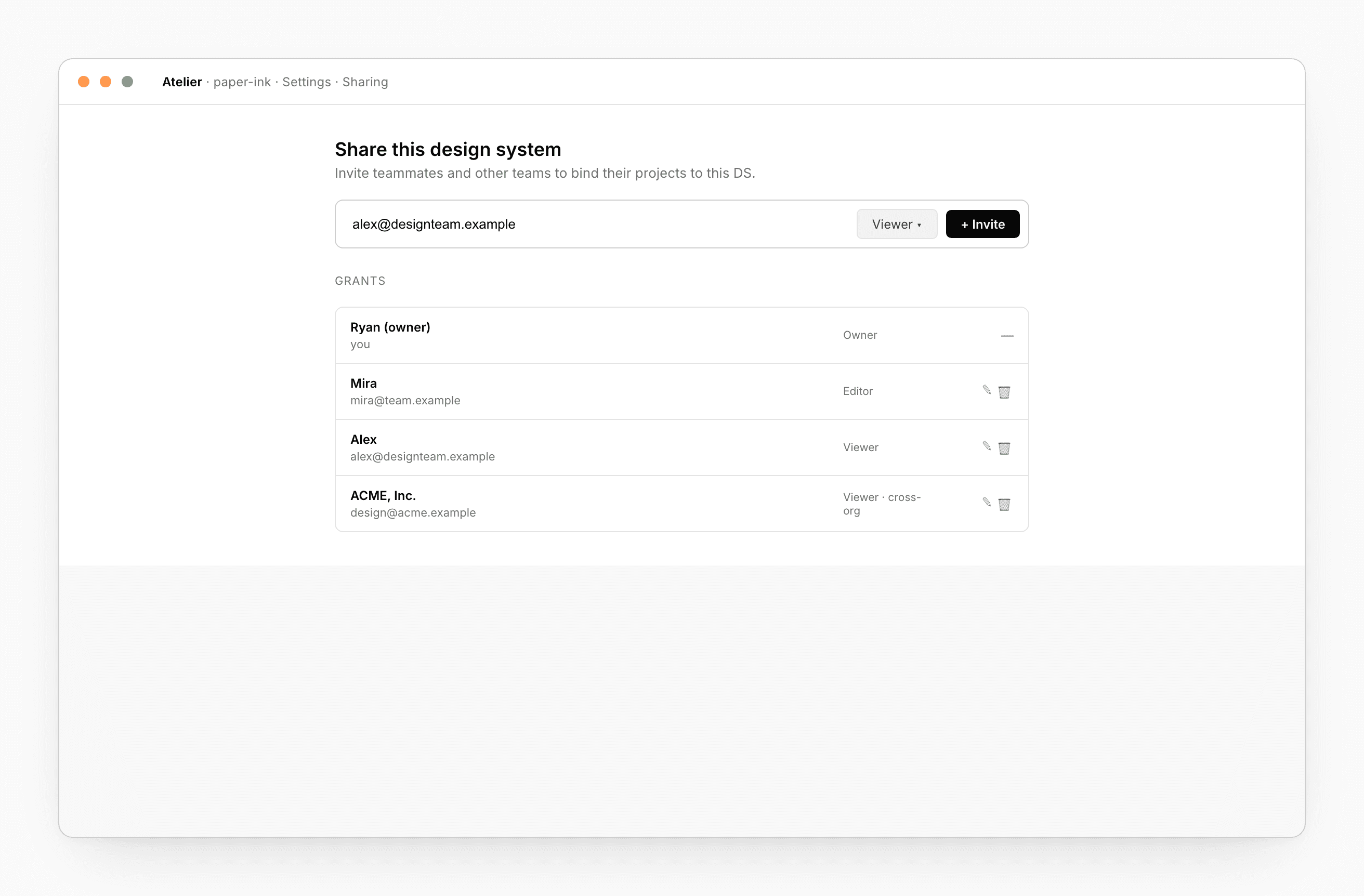
Design systems and Component libraries can be shared across organizations — useful for “central design team publishes, every product team binds”. Manage from the DS or CL editor’s Settings → Sharing.
| Role | Can |
|---|---|
| Viewer | Bind their projects to the DS / CL. |
| Editor | Edit tokens / components and publish. |
When you invite someone outside your org, the artifact shows up in their Dashboard under Shared with me. Revoking the grant detaches all their bound projects — the receiver gets a notice and can choose to re-bind locally.
Comments
Comments are anchored review notes pinned to preview regions. The agent emits them, you emit them, reviewers emit them.
Pin a comment
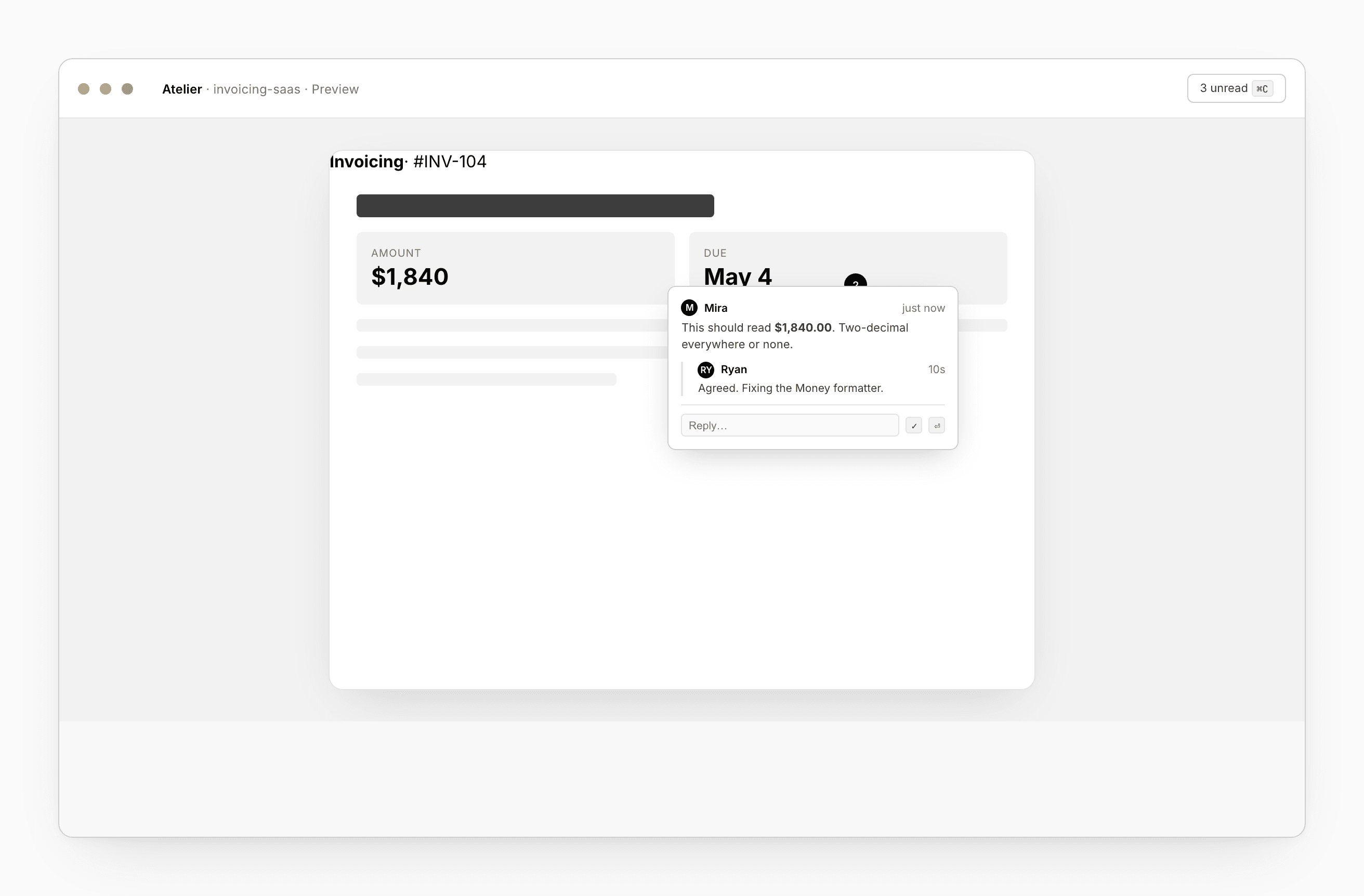
Click any region of the preview. A comment composer appears anchored to that spot — the file path, plus a DOM path for code or a position for napkins. The anchor survives small refactors, so a comment on a button still surfaces in the right place after the button moves into a different parent.
Threads
Each anchored pin is a thread — a top-level comment plus replies. Resolve and reopen with the icon next to the author. Delete your own; project owners can delete anyone’s.
Comments dialog
⌘C opens the Comments dialog — a list of every thread in the project, grouped by file. Click a thread to jump to its preview region; click Open file to switch tabs in the editor.
Unread badge
The workspace toolbar shows a count of unread comments; opening the dialog marks everything read. The badge updates live as new comments arrive.
Resolve on send
The comment composer has a Resolve on send switch — submit a reply and close the thread in one action. Useful for “fixed in commit X” replies.
Notify owner
Toggle Notify owner to send a desktop notification or email when you leave a comment. On by default for review-context comments.
A typical review pass
- The owner shares the project with a reviewer as viewer.
- The reviewer opens it; the preview shows a working build.
- The reviewer clicks into the preview and pins a comment (“this number is wrong, expecting 12 not 18”).
- The owner sees the unread badge bump.
- The owner fixes the issue with the chat and replies on the thread (“fixed in commit
c43f7a1”), checking Resolve on send. - The reviewer sees the resolution. If they disagree, Reopen with a follow-up.
For shared Design systems and Component libraries, the same pattern works — comments on token rows or component variants.
See also
- Preview → Comments — where pins come from
- Design system → Share
- Component library → Share
- Bindings — what cross-org sharing enables downstream