App
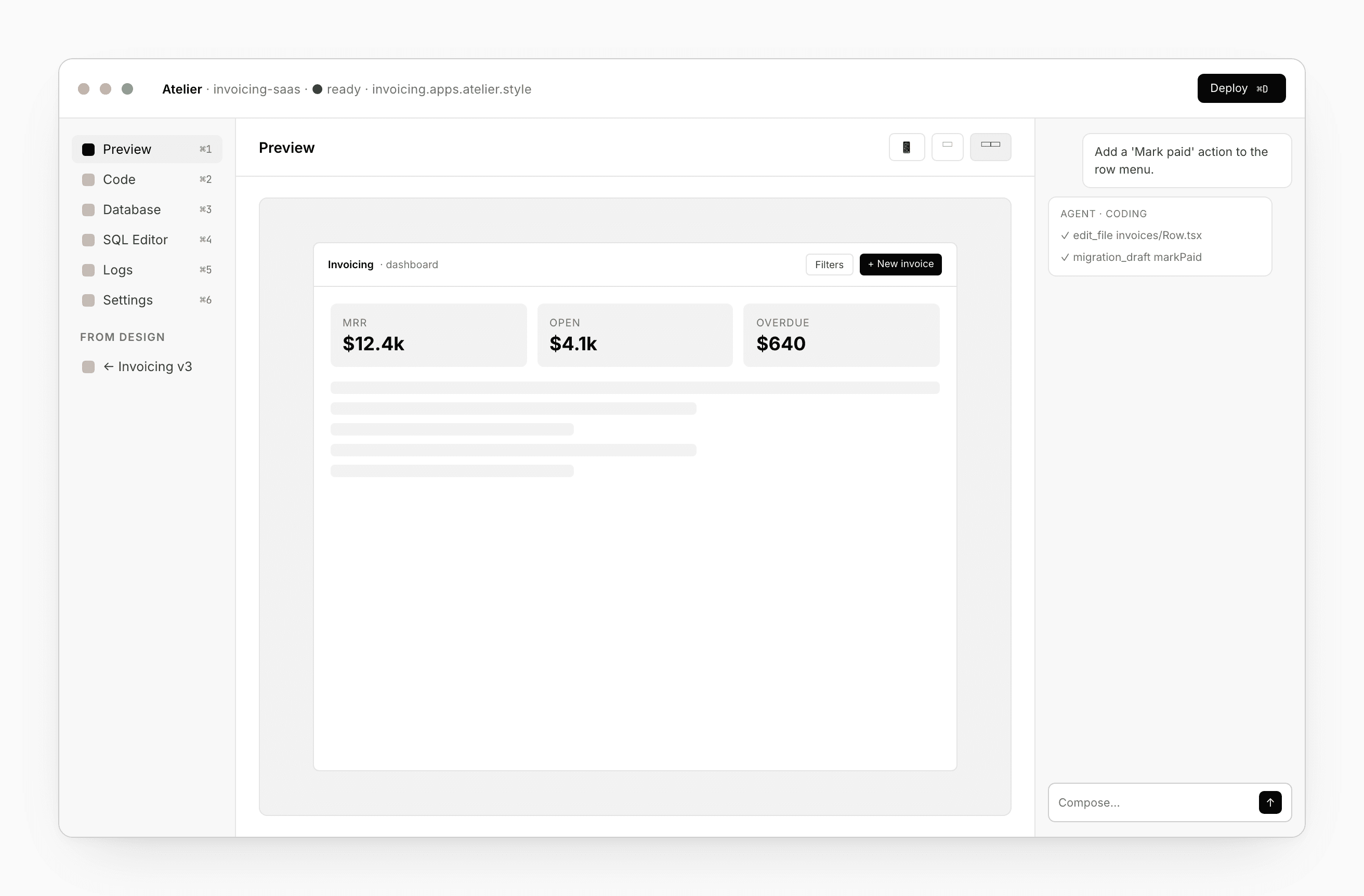
An App project is the only kind that ships. A real source tree (React for web, Flutter for mobile), a project database on Base, a deploy pipeline. The workspace is the operations surface — six tabs along the rail, a live URL in the header, and a chat that edits alongside you.
Spawned from a design
Apps usually start as a Design. From the design’s header, Create App asks for a stack:
- React — web.
- Flutter — mobile (runs on iOS and Android, with a web preview during dev).
When you submit, the App carries a link back to its source design — visible on the dashboard card as “from <design name>”. You can keep evolving the design in parallel and promote again later.
You can also start an App directly from the Dashboard. No parent, no caption — just a blank project.
The header
Always visible across every tab:
- The app’s live URL —
<your-app>.apps.atelier.styleuntil you set a custom domain. - A status dot — ready, building, error.
- Deploy — click to ship. The button stays mounted on every tab so you don’t have to context-switch to release.
Six tabs
| Tab | What it is |
|---|---|
| Preview | Your running app in a sandbox. Hot reload, multi-viewport, click-to-comment. |
| Code | A file editor over the project tree. The chat writes here; you write here. |
| Database | The project’s Postgres tables. Inline edit, insert, import, schema visualizer. |
| SQL Editor | Saved queries + ad-hoc SQL against your DB. Slow-query insights. |
| Logs | Live log stream from preview and deployed builds. Level filter, search. |
| Settings | Bindings, sharing, rename, parent design link, delete. |
The order matches the workflow: see it run → edit the code → look at the data → run a query → check logs → configure.
Preview
The preview is your app, live, in a sandbox. Hot reload on file save (typically under half a second). Multi-viewport toolbar: mobile, tablet, desktop, or any custom width you drag to.
Click any region of the preview to leave a comment or inline-edit text. Errors hop into the chat as a self-contained bundle the agent can fix.
See Preview.
Code
The file editor over your project tree. Monaco syntax, multi-cursor, find and replace, go-to-def for TypeScript. The chat writes here, you write here, both flow through the same file watcher.
The /functions/ folder is where your Base Functions live. Edit one, the sandbox reloads it; deploy ships it.
Database
A table editor for your project’s Postgres database.
- Tables list on the left, rows for the selected table on the right.
- Inline edit any cell; Insert row dialog for new rows.
- Import — paste CSV / JSON or upload a file; Atelier types-infers, diffs your schema, and proposes a migration before applying.
- Export — full table to CSV / JSON / SQL.
- Schema visualizer — graph of tables and foreign keys; click a relation to navigate.
- Visible / Total row count — tells you how many rows your current session can see versus how many actually exist. The gap is your RLS check.
The Database tab works directly against the project’s DB, not a snapshot. Be careful on shared projects; use the SQL Editor for save-and-share queries.
SQL Editor
Saved queries (per project, per user) and an ad-hoc query input. Run with ⌘↵. Atelier captures slow queries and surfaces a top-10 list — you’ll know which queries to add indexes for without instrumenting.
Switch schemas inline (public, your extensions). The current search_path is one click away.
Logs
A live tail from your running app — preview or deployed. Filter by level (debug, info, warn, error), search free-text, filter by deploy SHA. Click any line to expand its structured payload.
Settings
A panel of sections:
- General — name, seed prompt, delete.
- Stack — set at creation; can’t change.
- Parent design — link back if the App was spawned from one.
- Bindings — Design system, Component library, parent Design, and per-component overrides. See Bindings.
- Sharing — invite teammates as viewer or editor. See Sharing.
Deploy
Click Deploy in the header. Atelier builds your code, runs your tests, opens a canary rollout, and points your live URL at the new build. Failures roll back automatically; click the button again to retry once you’ve fixed the issue.
Every deploy gets a SHA, a preview URL for the branch, and a canary rollout before going to the live URL.
See Base → Deployments.
Export
Apps export to ZIP only. The full workspace minus internal bookkeeping. Use it to archive a tagged release, hand off to another team, or take a backup.
See Export.
Shortcuts
| Action | Shortcut |
|---|---|
| Tab 1–6 | ⌘1–⌘6 |
| Focus chat | ⌘L |
| Open file by name | ⌘P |
| Run query (SQL tab) | ⌘↵ |
| Deploy | ⌘D |