Chat
The chat is the agent that does the editing. Every surface inside Studio docks the chat composer; the same conversation follows you across the project, scoped to whatever you have open.
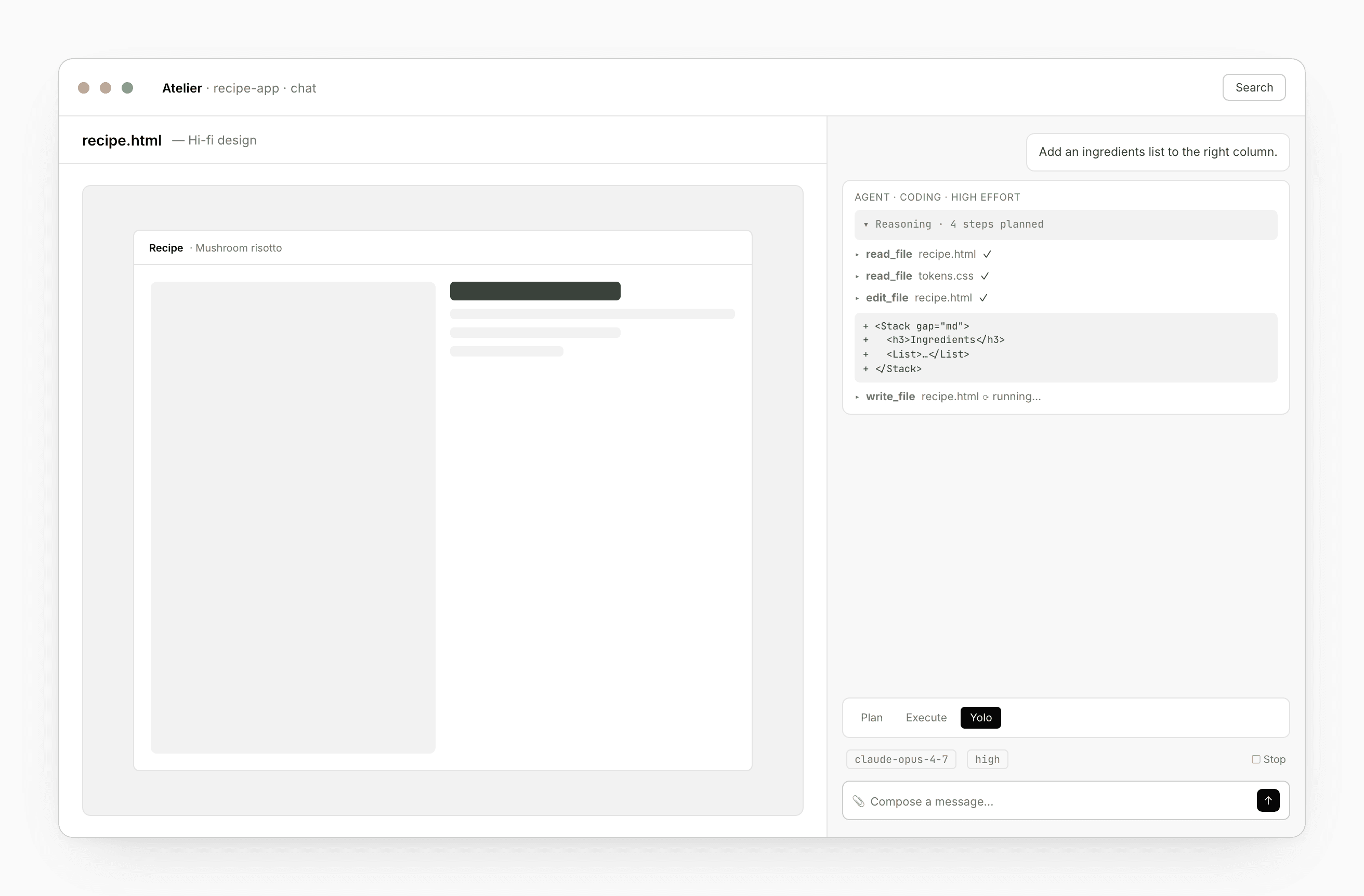
Three modes
A row above the composer lets you choose how autonomous the agent is:
- Plan — proposes a plan; doesn’t edit files. For scoping multi-step work before letting it loose.
- Execute — runs one step at a time, asks for confirmation between. For high-risk surfaces like schema migrations.
- Yolo — the default. Plans and executes autonomously; pauses only for destructive operations or when something needs your call.
You can switch between turns. Shortcut: ⌘⇧P / ⌘⇧E / ⌘⇧Y.
Pick a model
Pick the model with the dropdown next to the mode picker. The defaults are intentional:
- Gemini 2.5 Flash — fastest, lowest friction. The default.
- Gemini 2.5 Pro — bigger, slower.
- Codex and Claude (Opus / Sonnet) — need explicit sign-in; tend to do the heavier reasoning.
- Local (MLX) — runs on your Mac. Apple Silicon only, see Desktop app.
If you pick a model whose provider isn’t connected, the chat surfaces an inline Connect button — the OAuth round-trip happens without leaving the workspace.
Your API keys never leave your device on the desktop app — they live in the OS keychain. See Desktop → BYOS.
Thinking effort
A second dropdown lets you spend more on a single turn when you need it:
- Low — fast and shallow; one-file edits, formatting.
- Medium — the default; multi-file features.
- High — deep; architecture proposals, multi-step schemas.
- xHigh — sometimes minutes; cross-repo refactors, hard plans.
Higher effort costs more tokens. The bubble shows what was spent.
What the agent can do
Every turn is a sequence of tool calls. You’ll see them in the message thread:
- Edit files —
read,write,edit,delete,move. Diffs appear in the chat; you approve, the changes land in your repo. - Touch the database — query, run a schema diff, draft a migration.
- Work with bindings — bind a Design system, a Component library, or attach per-component overrides.
- Invoke a skill — load a named prompt for specialized behavior. See Skills.
- Read mounted context — your GitHub repo, a Figma URL, a
.figfile, a dropped image.
Sensitive tools (file delete, DB query, deploy) prompt for permission the first time per project. Pin always allow if you trust it.
Drag and drop
The chat takes:
- Screenshots — design becomes a starting prompt, grounded in your Design system.
- Figma URL — the agent fetches the frame, extracts hierarchy + tokens, maps to your Component library where it can.
- PDFs and briefs — used as PRD source; the agent diffs against your existing plan and proposes a merge.
- Sketches and whiteboard photos — vision read, the agent confirms intent before writing code.
Drop them in the composer, paste them, or drag from the desktop.
Add context to the whole project
The toolbar has an Add context button. Attach a GitHub repo, a Figma URL, a .fig file, or files from disk. The agent reads them on every turn going forward. Useful for project-wide context that shouldn’t be re-explained.
Reasoning, todos, and tool calls
The chat bubble shows you what the agent is doing:
- ▾ Reasoning — collapsed by default. Open if you want to read the agent’s thinking for the turn.
- Todos — a checkbox list for multi-step work. Items tick off as the agent finishes them; mark any as skip to halt.
- Tool calls — pending, running, succeeded, failed. Click a failed one to see the error or retry.
Abort
The ■ Stop button kills the in-flight turn. Tool calls already submitted complete in the background; the next message resumes cleanly.
Conversation persistence
Every chat is project-scoped and persisted. Switch machines or come back next week — the threads are there with full history. Archive, pin, or branch any thread from any message.
Search every chat across every project: Console → Search.
See also
- Skills — how the agent loads specialized prompts
- Desktop app — BYOS keychain, local LLM
- Bindings — what the agent reads as design context
- Preview — errors flow back into the chat
- Base → LLM — the runtime SDK; same model aliases