Component library
A Component library is the middle of the cascade. It ships typed components — React TSX or Flutter widgets — built on a Design system. Apps attach a library and import from it; tokens flow up from the DS, components flow down to the app.
Why a library, not a one-off folder
The chat can generate components inside an app. That’s fine for one-offs. A Component library is different — it’s a kit, versioned, with stories, with manifests the chat reads. Multiple apps can bind to the same library; updates ship to all of them on the next install.
The workspace
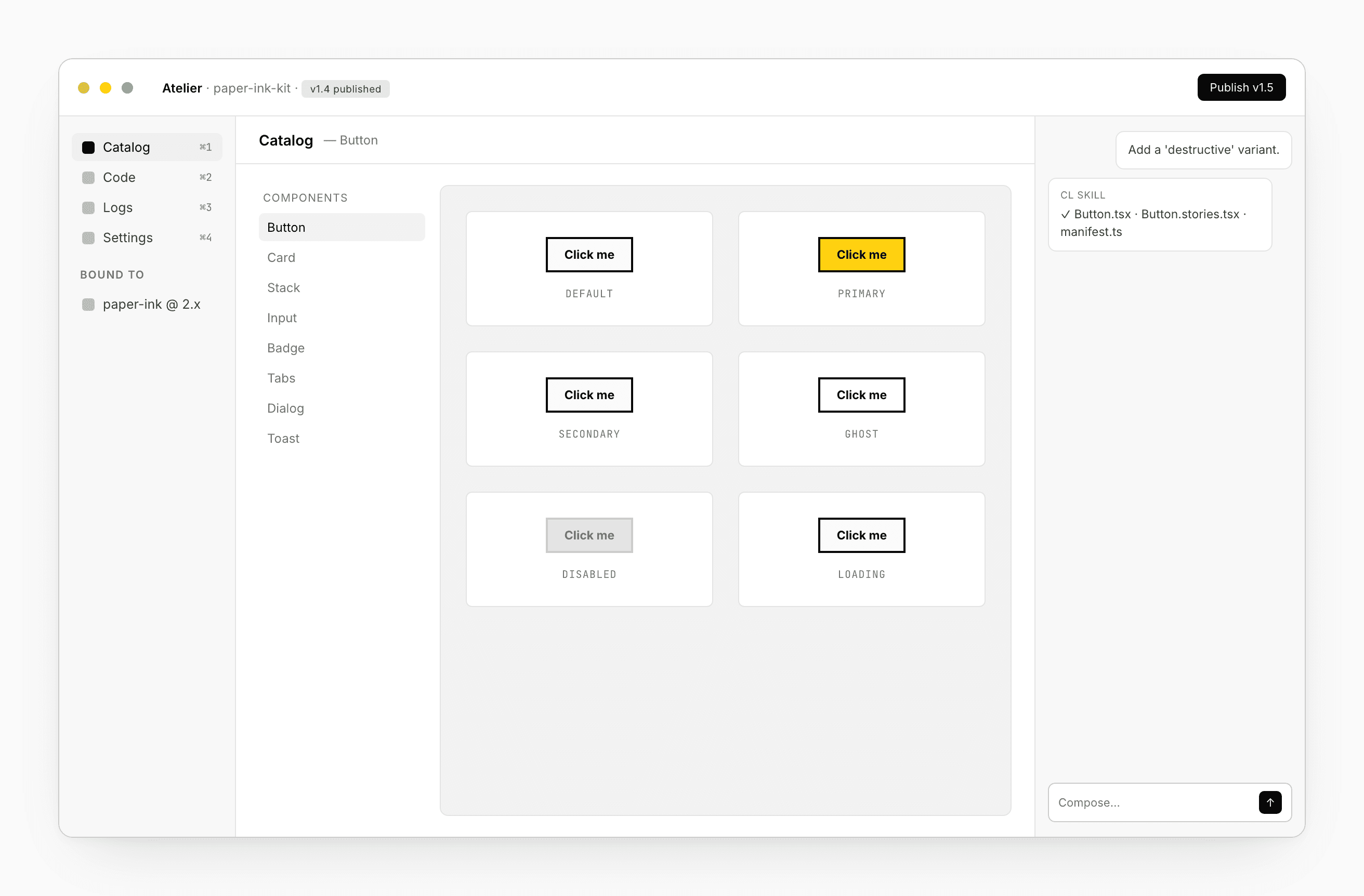
The library workspace has four tabs:
| Tab | What it is |
|---|---|
| Catalog | Every component, every variant. Storybook for React; Widgetbook for Flutter. |
| Code | The file editor over your kit. |
| Logs | Build, lint, and test output. |
| Settings | Stack, bindings, sharing, rename, delete. |
No Preview tab — libraries aren’t applications. The Catalog plays that role.
No Database or SQL Editor — libraries are stateless code.
Catalog
The Catalog is a live playground for every component you’ve shipped. Variants, a11y modes, viewport sizes, and a token inspector all come from the underlying tool.
When you add a component, it shows up here automatically — the chat agent writes a Stories file alongside every new component.
Code
A file editor over your kit. The repo layout the chat keeps:
components/<name>/<Name>.tsx— the component.components/<name>/<Name>.stories.tsx— the stories file the Catalog renders.components/<name>/manifest.ts— the variants and props, declared. This is what makes the component cascade-aware.tokens/— mirrors your bound Design system (don’t hand-edit; the cascade keeps this in sync).
Components without a manifest are invisible to the cascade — the chat agent won’t import them when writing consumers. Always write the manifest.
Logs
Build (Vite for React; Flutter build for Flutter), lint, and test output. Click a line to expand structured payload.
Settings
- General — name, seed prompt, delete.
- Stack — set at creation; can’t change.
- Bindings — what Design system this kit consumes. Floating versions or pinned.
- Sharing — invite teammates as viewer or editor; cross-organization grants work the same way.
- Publish settings — registry target (npm for React, pub for Flutter), public or private, scope.
Publishing
Click Publish. Atelier bumps the version (semver), runs your build + lint + tests, snapshots the bound Design system’s tokens into your kit (so the published version is self-contained), and ships to your registry and to Atelier’s library registry.
A failed publish leaves your working tree alone — fix and try again.
The publish chip on the Dashboard shows the latest version.
Attach to an App
From an App’s Settings → Bindings, pick this library. Atelier:
- Adds the library as a path dependency in the App’s
package.json(React) orpubspec.yaml(Flutter). - Tells the chat agent about your kit — components, variants, prop shapes — so generated UI uses your components instead of inlining Tailwind.
- Materializes tokens if needed.
Detach is the inverse; the agent goes back to writing generic UI.
See Bindings.
What the chat does in a library
In a library project, the chat agent’s defaults change:
- Every component proposal includes a manifest declaring variants and props.
- Every component gets a Stories file alongside it.
- Tokens come from the bound Design system, not from training data.
- The agent won’t write routes, schema, or auth — those don’t belong in a library.
Ask for “a card with a header slot” → the chat writes the component, its stories, and updates the kit’s manifest.
Share with other teams
Same as Design systems — cross-organization grants. Other teams can bind their apps to your kit; you keep control of the source. See Share + Comments → Share.
Export
ZIP only. The full kit as a source archive — handy for tagged releases or handoffs outside Atelier. The library is also available via the npm or pub registry it publishes to.
See also
- Design system — what a library consumes
- App — what a library attaches to
- Bindings — DS + CL → App
- Share + Comments → Share