Dashboard
The Dashboard is the home screen. You’ll see every project you’ve made, screenshots into tabs by kind. The left rail is where you start new work.
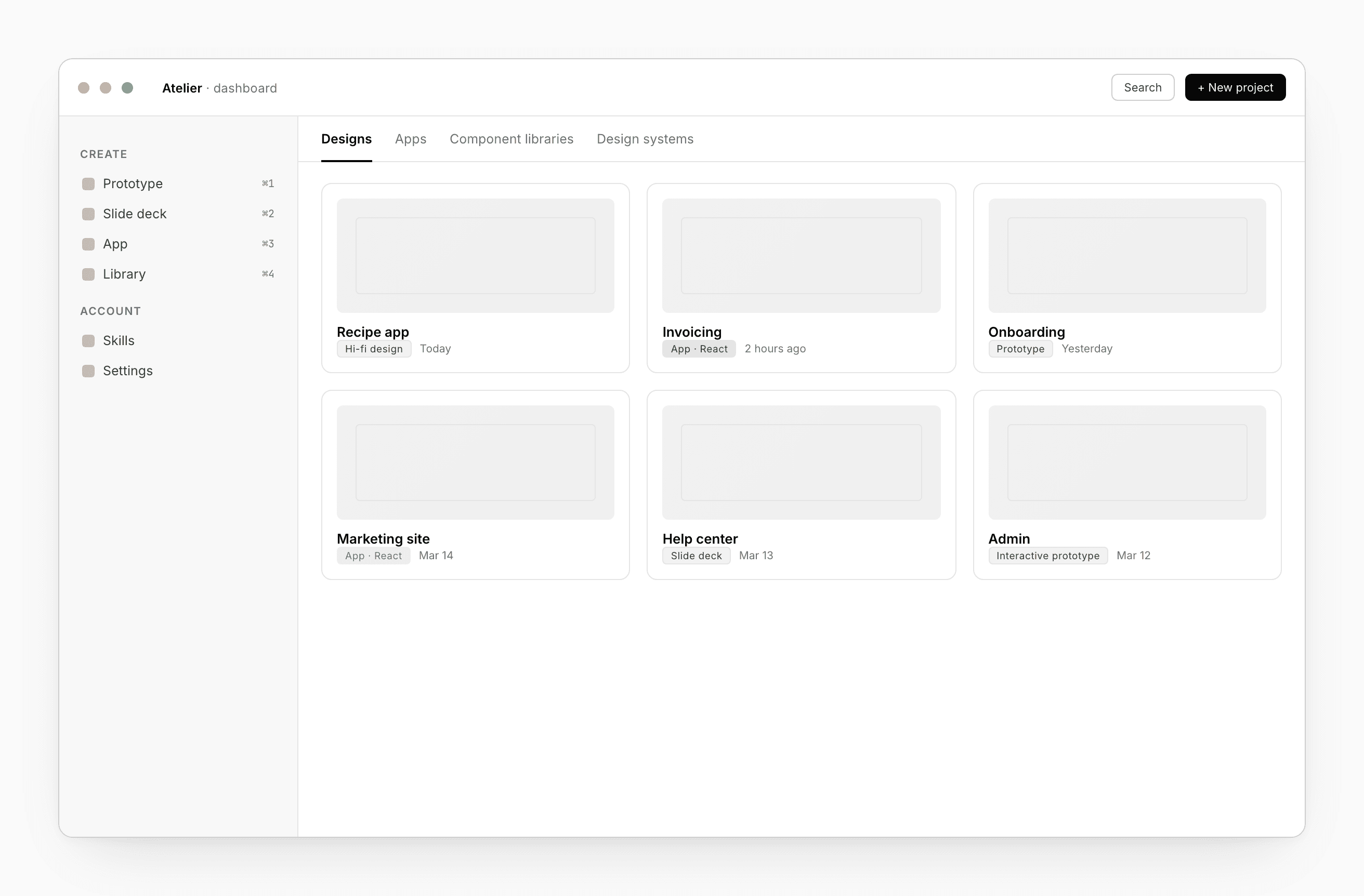
Find your projects
Four section tabs run across the top:
- Designs — hi-fi designs, prototypes, interactive prototypes.
- Apps — your shipped products.
- Component libraries — your React and Flutter kits.
- Design systems — your brands.
Slide decks live in the Designs tab and are marked Slide deck.
Each project shows a thumbnail, its kind, when you last opened it, and a status indicator. Hover a card for Open, Rename, Duplicate, Share, and Delete. The star pins favorites to the top.
Start something new
The left rail has four starting points:
- Prototype — an exploration project, ready for the chat to riff in.
- Slide deck — a presentation, with “Less text on slides” already on.
- App — a full project. Pick React for web or Flutter for mobile.
- Library — a component library, React or Flutter.
When you spawn an App from inside a design, the design becomes the parent and the App keeps a link back to it. Useful for going back to adjust the source before regenerating.
For starting points outside these four (a Design system, an Interactive prototype), use the + New project button at the top right.
Designs section
Three project kinds share this tab — Hi-fi design, Prototype, Interactive prototype. The chip on each card tells them apart.
Apps section
App cards spawned from a design show a small from <design name> caption — click it to jump back to the parent design.
Design systems and Component libraries
These tabs show a publish chip on each card with the latest version, or Unpublished if you haven’t shipped a version yet. Click the chip to publish — or open the project for the full editor.
Skills
The fifth tab on the Dashboard is Skills. Skills are short named prompts the chat can invoke on demand. See Skills.
Search
The search input at the top filters by name across all tabs.
Offline (desktop)
On the desktop app, projects with a local workspace stay editable even when the server is unreachable. You’ll see a banner where the dashboard normally shows network status; everything you make queues to sync on next connect.
Shortcuts
| Action | Shortcut |
|---|---|
| Section tabs | ⌘1–⌘4 |
| Search | ⌘K |
| New project | ⌘N |
See also
- Project kinds — what each kind is good for
- Share + Comments — invite teammates per project