Design
Three kinds of projects share the design canvas: Hi-fi design, Prototype, Interactive prototype. They share one workspace; the chat’s defaults differ to match what each kind is meant to produce.
| Kind | Fidelity | Interaction | Typical use |
|---|---|---|---|
| Hi-fi design | Pixel-perfect | Static | Final-look screens for stakeholder review or handoff |
| Prototype | Low–medium | Static | Early exploration; many directions side by side |
| Interactive prototype | Medium–high | Clickable, multi-screen | User-research demos; “can we live with this flow?” |
The workspace
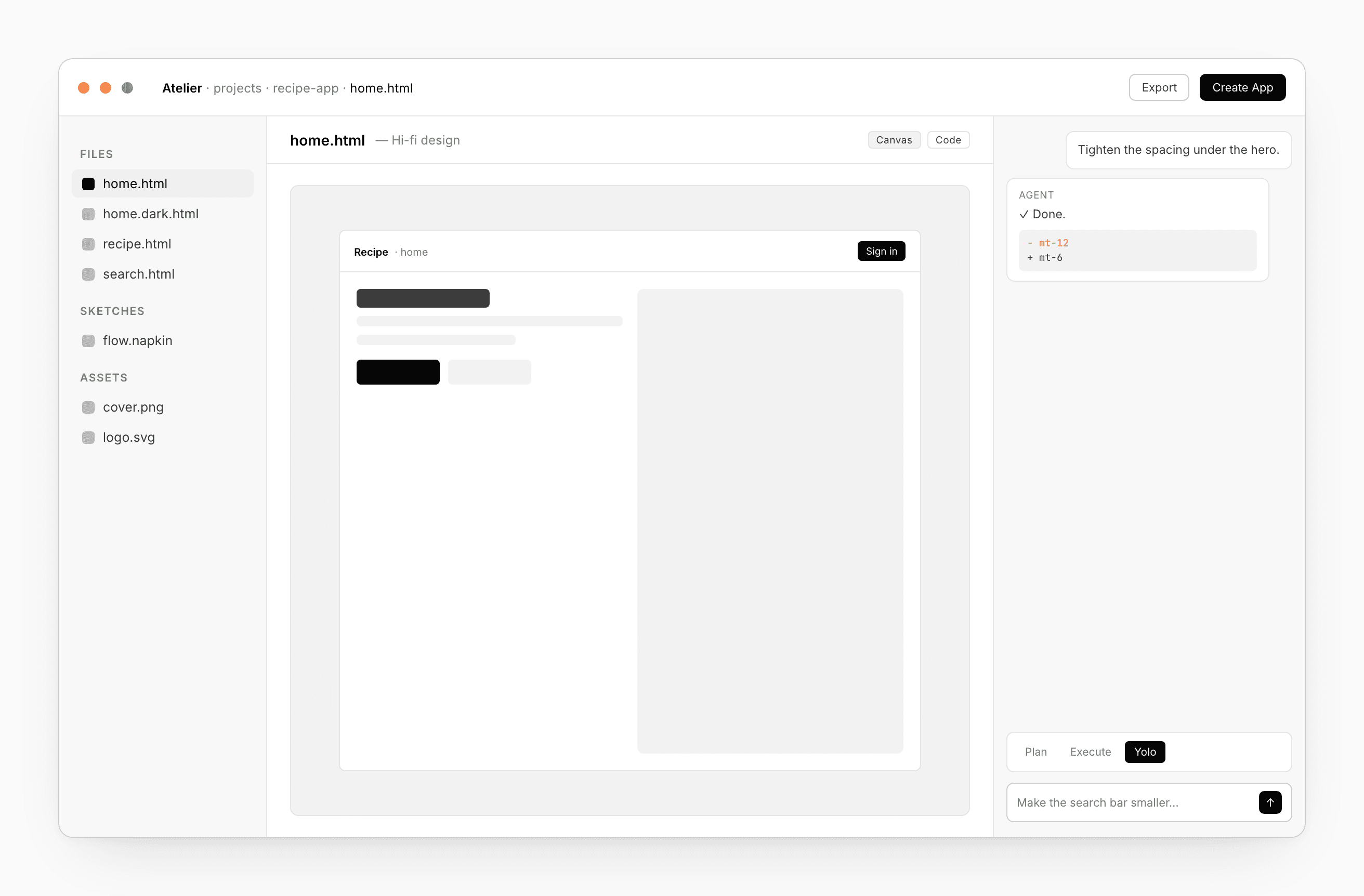
The left rail lists every file in the project. The middle is where you work — a canvas for HTML/CSS, an editor for code, a viewer for .napkin sketches. The right is the live preview. The bottom is the chat — always there, scoped to whatever file you have open.
Files and variants
Variants are first-class. A prototype project commonly has several sibling HTML files — home.html, home.dark.html, home.condensed.html — and you can flip between them with the file list. Cmd+D on a tab forks the file in place so you can riff without losing the original.
You can drop assets straight into the workspace (images, fonts, exported Figma frames); they show up in the file list and the chat picks them up on the next turn.
The draw overlay
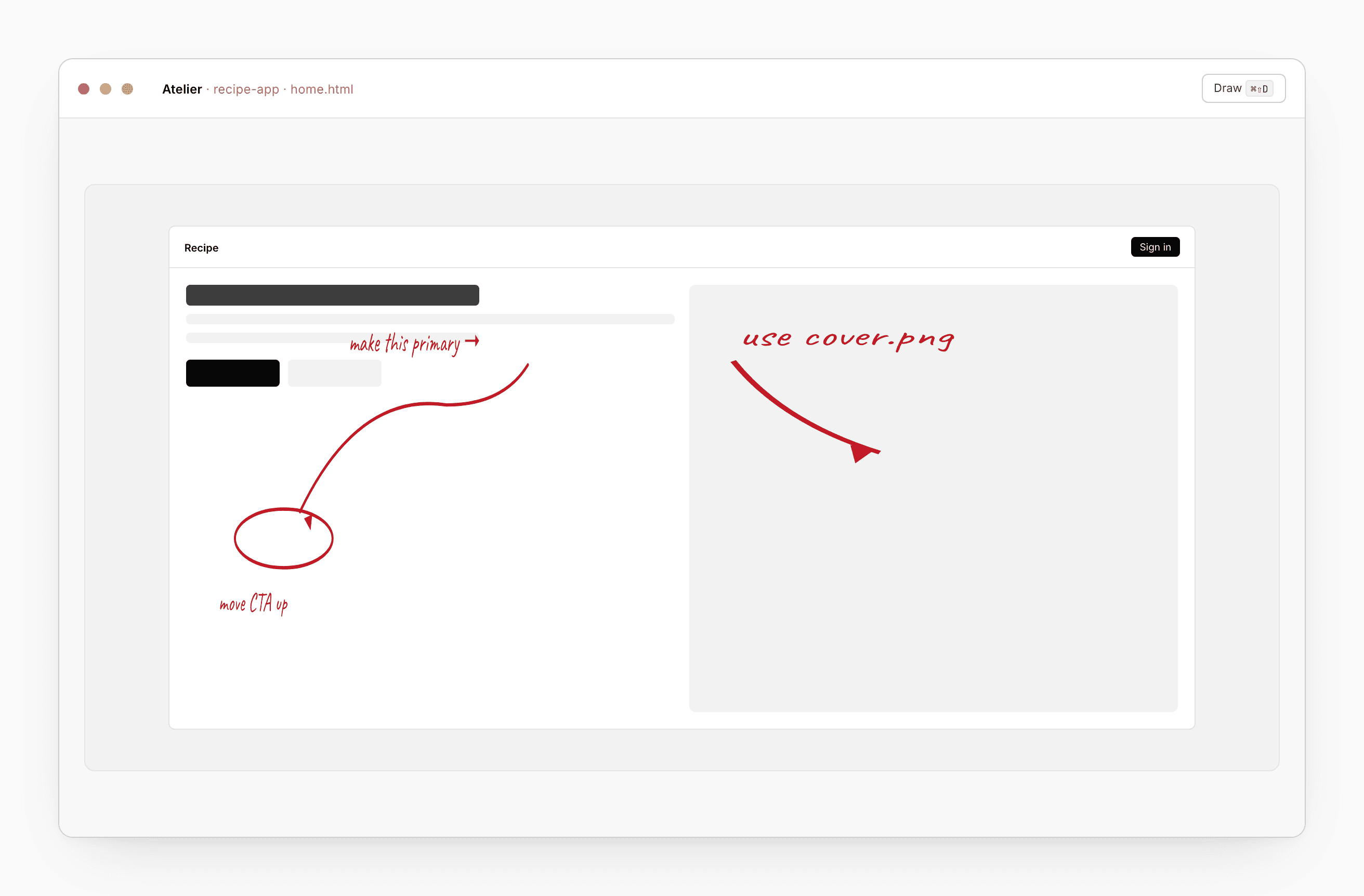
On HTML files, a draw overlay lets you sketch corrections directly on top of the rendered design — “move this button there”, “this spacing is wrong”, “add a tag here”. The chat reads the overlay as input the next time you send a message, so you don’t have to translate the sketch into words.
The chat
The chat at the bottom is the agent that edits your active file. It behaves differently per design kind:
- Hi-fi design — biases toward production-quality HTML/CSS in a single file.
- Prototype — explores directions; happy to spawn variants.
- Interactive prototype — wires interactions, multi-screen flows.
Hold an image or a Figma URL? Drop it in the chat — the agent reads it, grounded in your bound Design system. See Chat for modes, models, and what the agent can do.
Comments
Click any region of the preview to leave a comment. Threads, replies, resolve and reopen are all in the Comments dialog. Anchors survive small refactors, so a comment on a button still surfaces after the button moves into a different parent.
Promote a design into an app
When the design is ready, click Create App in the header. Pick React for web or Flutter for mobile. Atelier spawns a fresh App project carrying:
- The design’s files (HTML/CSS scaffolds the agent will turn into real components).
- A link back to the source design — visible on the App’s dashboard card as “from
<design name>”.
The parent design keeps evolving in parallel. Re-promote when the design moves enough that the App should follow.
See App.
Export
The Export menu in the header gives you:
- Project ZIP — every file in the workspace.
- Standalone HTML — one self-contained
.htmlthat works offline. - PDF — printed preview.
- Figma — capture the design into a new Figma file (coming soon).
- Claude Code handoff — workspace ZIP + a CLAUDE.md describing what you made, so a Claude Code session can pick the work up.
Full menu and details on Export.
Shortcuts
| Action | Shortcut |
|---|---|
| Open file by name | ⌘P |
| Toggle preview | ⌘E |
| Toggle chat | ⌘L |
| New variant from current | ⌘D |
| Toggle draw overlay | ⌘⇧D |