Preview
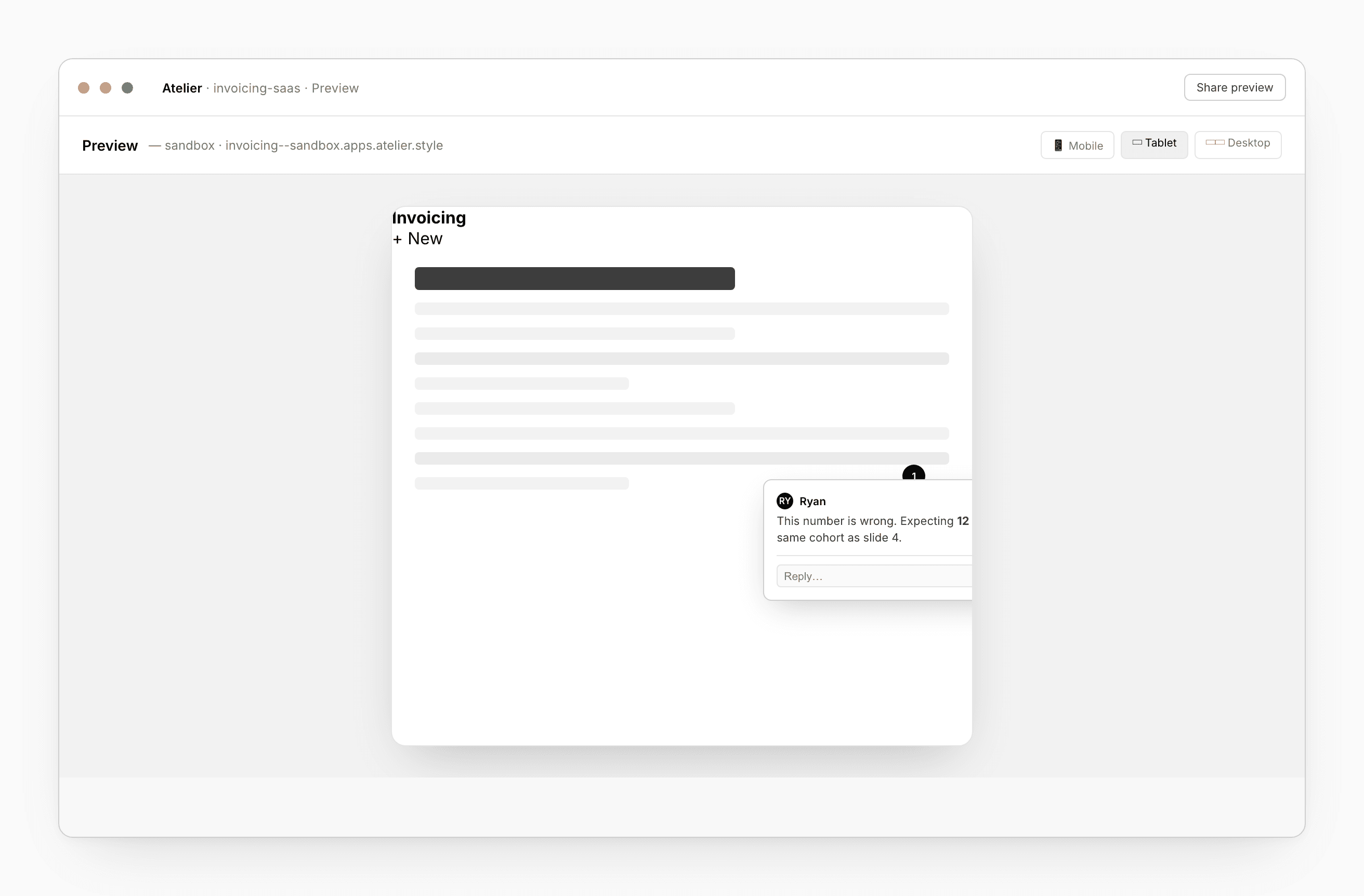
The Preview panel runs whatever you’re working on — a design’s HTML, a slide, a napkin, your app — and keeps it current as you edit.
What it shows
- Designs and slide decks — the rendered HTML for the file you have open.
- Apps — your app, live, in a sandbox. Same auth, same data branch, same routes you’d see in production.
- Napkins — the canvas viewer.
On the desktop app, designs and apps run against a local dev server. On the web, they run in a sandbox at <project>--sandbox.apps.atelier.style. Either way, the panel renders an iframe and watches for updates.
Hot reload
Edit a file → the preview rebuilds the affected route. Typical times:
- HTML/CSS edit — under 200 ms.
- App route edit — under 400 ms.
- Schema migration — applies on the next request.
- Function edit — fresh worker boots; next request hits the new code.
- Token change (Design system) — re-paints, no full rebuild.
The chat waits for the rebuild before responding, so its reasoning never gets ahead of what you see.
Multiple viewports
A toolbar across the top of the preview switches between sizes:
- Mobile — 375 × 667 (iPhone SE; Tailwind
sm:). - Tablet — 768 × 1024 (iPad portrait; Tailwind
md:). - Desktop — fills.
- Custom — drag the right edge of the preview. Atelier records the breakpoint your layout started to break at.
Your choice persists per machine.
Click to comment
Click any region of the preview to leave a comment. Threads, replies, resolve and reopen are all in the Comments dialog.
Comments are anchored — to the file path, plus a DOM path for code and a {x, y} for napkins. Anchors survive small refactors, so a comment on a button doesn’t go stale when the button moves into a different parent.
Live edits
Click text directly in the preview to edit it inline. The edit becomes a chat turn with the affected file pre-staged. Click a color token to open the chat pre-loaded with the file and the property to change.
⌘+click any element to Replace this element — the chat opens with a “replace this” turn ready.
When something breaks
The error overlay shows in the preview frame; the source map points back to the file and line. Click Send to chat to attach the stack trace to the next chat turn — the agent will offer a “Fix this” turn that proposes a patch.
For apps, server errors hop straight into the chat as a self-contained bundle: stack trace, request, server log, SQL, deploy SHA. You can either accept the proposed fix or take a closer look in the Logs tab.
Share a preview link
Click the URL bar → Share. The preview gets a public link tied to a snapshot of the current working tree. Useful for stakeholder review without a real deploy. The link is auth-gated through Atelier sign-in by default; flip it to public in the share modal.
The same link shows up on GitHub PR comments when your project is wired to GitHub.
Call a function (App)
For App projects, the right rail’s Function picker invokes a function with the request envelope you specify — JSON, multipart, an inbound email payload. The response, the logs, and the trace come back inline.
See also
- App — the App workspace, where preview docks on the right
- Design — preview within design workspace
- Napkin — canvas viewer
- Share + Comments — comment overlay model
- Base → Deployments — preview deploys at the project level